
Adobe Acrobat Reader: Edit PDF
AdobeProductivity
4.5146.34K Reviews
- Version
- Varies With Device
- Installs
- 500.00M
- Age Rating
- Everyone
Screenshots
Our Review of Adobe Acrobat Reader: Edit PDF
 Analysis by Appyee
I judge a PDF app by what happens when a document arrives at an inconvenient moment: can I read it comfortably, find the right page, and make a small change without turning the task into a project? Adobe Acrobat Reader: Edit PDF is built for that kind of everyday work. It is a productivity app from Adobe, and its mix of reading, form filling, signing, and document tools makes it more versatile than a basic PDF viewer. The main trade-off is that the experience can feel broader than necessary when all I want is to open one file and read it.
Reading comfortably and finding your way
Most of my time in a PDF app is spent reading, so navigation matters as much as editing. Acrobat is useful when a document needs more than a quick glance: I can move through pages, return to a file to pick up where I left off, and use annotations to mark the parts I want to revisit. For a long handout or a work document, that makes the phone a practical reading tool rather than just a place to store attachments.
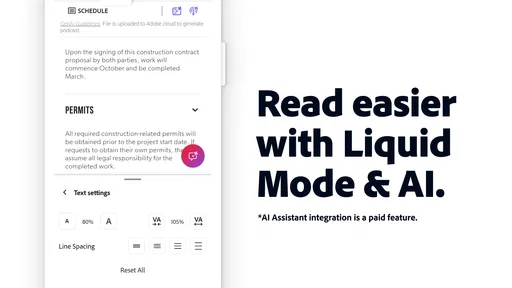
Text size and page layout can make a real difference on a small screen. I recommend testing a document’s reading view before settling into a long session, because a PDF designed for print may still require frequent zooming and panning. A two-column report, a form with tiny boxes, and a simple letter behave very differently on a phone. Acrobat can display the file, but it cannot make every original layout equally comfortable to read.
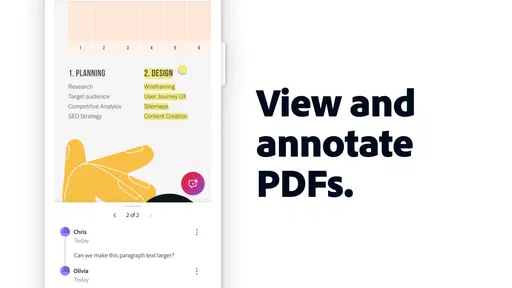
Annotations are most useful when I keep them purposeful. Highlight a sentence I need to discuss, add a short comment beside an unclear clause, or draw attention to a figure before sending the file back. A page covered in marks becomes harder to scan, so I treat annotations as a light review layer rather than a replacement for a proper rewrite. If the task is to change substantial amounts of existing text, a desktop editor is usually a better fit.
Motor and sensory considerations
Touch controls make quick actions feel direct, but a phone screen also leaves less room for precision. Signing, selecting a small control, or marking a narrow line can take patience, especially when the page is zoomed out. I find it easier to enlarge the relevant area first, complete one action, and then return to the full page. That small change of rhythm helps avoid misplaced marks and repeated taps.
People who rely on spoken feedback, larger text, or other device-level accessibility settings may want to check how a particular PDF behaves on their own phone. The app is only one part of the experience: document structure, contrast, scanned pages, and the operating system’s assistive tools all affect readability. I would not assume that a file becomes accessible simply because it opens in Acrobat. A clean, selectable-text document is generally a more workable starting point than a poorly scanned page.
Situational access and everyday tasks
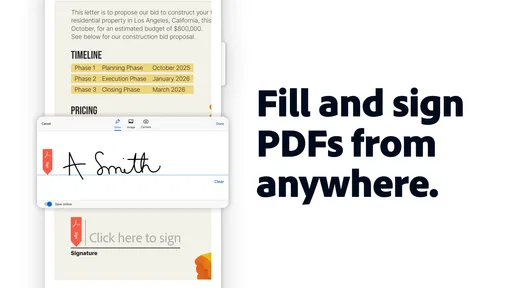
The app earns its place when a document needs attention away from a desk. Imagine a school form arriving while you are between errands: I can open it, inspect the fields, fill in what I can, and add a signature without printing it first. For a work trip, keeping a reference PDF available on a phone can also save time when a colleague asks for a detail in a meeting. These are modest tasks, but they are exactly where a capable mobile reader is more useful than a laptop-only workflow.
Cloud connections can help when files already live in services such as Google Drive, Dropbox, or OneDrive. I like being able to reach a document without first sending it to myself, though access still depends on having the right account and a reliable connection for the task. Before travelling or heading somewhere with patchy reception, I would open important files ahead of time rather than assume every cloud-based step will be available at the moment I need it.
Where the workflow can snag
The free app covers useful reading and document tasks, but some heavier PDF work sits behind paid options. Converting files and combining several PDFs can be worth paying for if those jobs are part of a regular routine; for an occasional one-off, a computer or a separate tool may be more sensible. In-app purchases range from $1.99 to $299.99 per item, so I would check the specific feature and purchase terms in the app before committing rather than treating every advanced tool as part of the free experience.
There is also a difference between adding notes and truly editing a document. Signing a form or commenting on a draft is a natural phone-sized task; rebuilding a complex page, correcting extensive text, or comparing many revisions is not. Acrobat’s range is convenient, but it does not remove the limits of working on a small display. If you mainly need to read books or simple files, a lighter viewer may feel less busy. If your work depends on detailed layout changes, a full desktop PDF editor is the more comfortable choice.
For most people, the best approach is to decide what the file needs before opening tools: read it, mark it up, fill it in, sign it, or convert it. That keeps a broad app from becoming a maze of options. I also avoid making tiny edits while walking or rushing between appointments; it is easier to review the finished document when I can give the screen my full attention. That is a practical safety habit as well as a way to catch mistakes.
Getting Started with Ease
Right off the bat, downloading and setting up Adobe Acrobat Reader: Edit PDF is a breeze. Available on both Android and iOS, it takes just a couple of taps to get it up and running. Once installed, you're greeted with a clean and intuitive interface that doesn’t overwhelm you with too many options, which is always a plus in my book.
Features That Pack a Punch
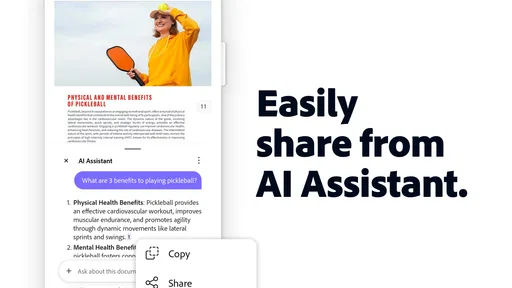
So, what can you actually do with this app? Quite a bit, actually. First off, you can open and view PDFs without any hassle. But the real magic happens when you start exploring the editing tools. Need to annotate a document? You can highlight text, add comments, and even draw directly on the PDF. It’s like having your own mini editing studio right in your pocket.
One feature that really stood out to me is the ability to fill out and sign forms. Gone are the days of printing, signing, and scanning back documents. Now, you can do it all on your phone. Just think about how much paper you’re saving! Plus, if you’re into organizing, the app lets you manage your files pretty seamlessly.
Cloud Integration and More
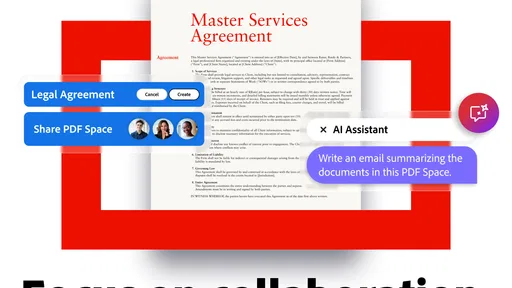
Another thing I love about this app is its cloud integration. You can easily connect to services like Google Drive, Dropbox, and OneDrive. This means you can access your documents from pretty much anywhere. I’ve found this super handy when collaborating with colleagues or when I need to pull up a file quickly.
Not to mention, Adobe Acrobat Reader: Edit PDF also offers a premium version. If you're someone who needs to convert files to and from PDFs or combine multiple PDFs into one, the premium features are worth considering. They add a whole new dimension to the app and make it an even more powerful tool.
Final Thoughts
In a nutshell, if you’re someone who frequently deals with PDFs, Adobe Acrobat Reader: Edit PDF is definitely worth checking out. It's user-friendly, packed with essential features, and integrates well with other cloud services. Whether you're a student, a professional, or just someone who loves staying organized, this app could become your new best friend.
And hey, it’s free to try, so why not give it a whirl? You might just find that it’s the missing piece in your productivity puzzle.
Who benefits most from keeping it installed
I would recommend Acrobat most to people whose PDF tasks change from day to day: a student reading course material and marking passages, a contractor signing a form, or an office worker checking a report on the commute. One app can cover those small jobs without requiring a separate viewer, annotation tool, and signing workflow. Its 4.5 average from around 7.4 million ratings and more than 500 million installs suggest that it has become a familiar option for a wide range of users, though popularity alone does not tell me whether it suits a particular person’s needs.
The app is free to download, with an Everyone age rating. For someone who only opens a PDF now and then, that makes it easy to try the basic workflow before deciding whether it deserves space on the phone. I would skip it if I rarely work with PDFs and prefer the simplest possible reader, or if most of my work involves precise page design and extensive editing. Those users may be happier with a basic viewer or a desktop-first editor, respectively.
Small workflow choices that save time
One useful habit is to inspect a form before filling it in. I check whether the fields are actual interactive fields or just printed boxes in a scanned page; that tells me whether I can move through the form cleanly or will need to place text and a signature more carefully. If the page is a scan, I zoom in and work one area at a time rather than trying to tap accurately on the whole page. This is not a glamorous feature, but it prevents the common frustration of finishing a form only to find that a mark landed in the wrong place.
For review work, I separate comments from final changes. I use a highlight to identify a passage and a short note to explain what needs attention, then send the document for a proper revision if the wording itself must change. That keeps a mobile review readable for the next person. It also helps me avoid treating a PDF annotation as though it were an edit to the original source document.
When combining or converting files is a recurring task, I would compare the cost of the relevant paid option with how often I actually need it. Someone merging documents every week may value doing it in the same app where they read and sign. Someone who needs that once in a while can likely wait until they are at a computer. I would not upgrade simply because a tool exists; I would first identify the exact step that is slowing me down and confirm that the paid feature handles that step.
How it compares with simpler PDF apps
A lightweight reader can be a better choice if all you want is to open a document and turn pages. Such apps often keep the interface focused, which matters on a small screen or for someone who finds tool-heavy layouts distracting. Acrobat’s advantage is breadth: reading, marking up, signing, file access, and optional conversion or combining tools live in one place. The cost of that breadth is that there are more choices to learn, and not every user needs them.
Compared with doing everything on a computer, Acrobat is strongest at short, self-contained tasks. Reviewing a page, signing a form, or checking a detail while away from a desk feels natural. Reformatting a dense report, correcting many paragraphs, or carefully comparing document versions is much less comfortable on a phone, even when the app can help with parts of the job. I see it as a useful companion to a desktop workflow, not a universal substitute for one.
What I would check before relying on it
Is it suitable for a long reading session? It can be, especially with a straightforward document, but I would test the page layout and the phone’s reading settings first. Is a signature enough to finish a form? Often it is, but I would inspect the result and make sure every required field is completed before sending it. Can I count on a cloud file in a place with poor reception? I would open important documents in advance and avoid leaving access until the last minute.
For accessibility, I would test the exact combination of device settings and document types I expect to use. A well-structured PDF with selectable text may work very differently from a low-quality scan or a crowded form. Larger display text and spoken assistance can help some people, but they cannot repair missing document structure or make tiny printed fields easy to target. Acrobat is useful across many contexts, yet the file itself and the phone’s controls remain part of the experience.
A practical inclusive verdict
Adobe Acrobat Reader has earned its place on my phone because it can handle several common PDF jobs without forcing me back to a printer or computer for every small task. Adobe has been developing it since May 24, 2010, and its long history is reflected in a mature, widely used product rather than a narrowly focused reader. I like its flexibility, especially for forms and quick review, while staying realistic about the limits of mobile editing and the paid tools.
My recommendation is strongest for people who regularly receive PDFs and want to read, annotate, sign, or reach files from different places. I would still test it with the documents and accessibility settings that matter to you, because a phone app cannot compensate for every awkward layout or inaccessible scan. If you need a simple reading experience, choose something lighter; if you need deep document production, use a larger screen. For the many tasks between those extremes, Acrobat is a capable and convenient choice.
Privacy and Permissions
See what permissions an app requests and how it handles your data.
- Identity
- add or remove accounts
- Contacts
- read your contacts
- Photos/Media/Files
- read the contents of your USB storage, modify or delete the contents of your USB storage
- Storage
- read the contents of your USB storage, modify or delete the contents of your USB storage
- Camera
- take pictures and videos
- Microphone
- record audio
- Wi-Fi connection information
- view Wi-Fi connections
- Other
- view network connections, create accounts and set passwords, full network access, change your audio settings, control Near Field Communication, run at startup, use accounts on the device, control vibration, prevent device from sleeping
Verdict
Strengths of Adobe Acrobat Reader: Edit PDF
- Intuitive interface for easy navigation.
- Seamless integration with cloud services.
- Supports a wide range of file formats.
- Robust annotation tools available.
- Reliable performance with large files.
Limitations of Adobe Acrobat Reader: Edit PDF
- Requires subscription for premium features.
- Occasional lag on older devices.
- Limited editing tools in free version.
- Ads in the free version can be intrusive.
- Some features require constant internet.
Other Releases by Adobe
View All
Photoshop Express Photo Editor
Photography4.6

Adobe Scan AI PDF Scanner, OCR
Business4.6

Lightroom Photo & Video Editor
Photography4.5

Adobe Express: AI Photo, Video
Art & Design4.6
Similar Picks in This Category
View All
Google Calendar
Google LLC4.6

Google Drive
Google LLC4.3

Google Assistant
Google LLC3.9

Microsoft OneDrive
Microsoft Corporation4.6

Samsung Calendar
Samsung Electronics Co., Ltd.4.1

Microsoft OneNote: Save Notes
Microsoft Corporation4.6
You May Also Like
View All
Frequently Asked Questions
What features does Adobe Acrobat Reader offer for editing PDFs?
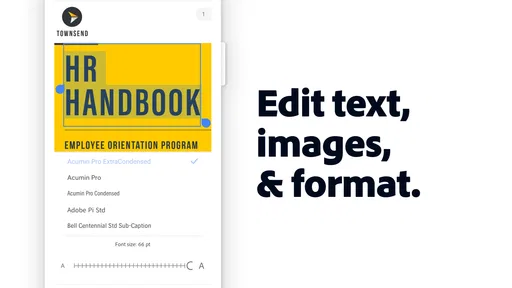
Adobe Acrobat Reader provides a range of features for editing PDFs. Users can add comments, fill forms, sign documents, and annotate PDFs with highlights and sticky notes. Additionally, it allows for basic text editing, rearranging pages, and adding images, making it a versatile tool for managing PDF documents.
Is Adobe Acrobat Reader free to use, and what are the in-app purchases?
Adobe Acrobat Reader is free to download and use for basic PDF viewing and commenting. However, advanced features such as editing, converting PDFs to other formats, and organizing pages require a subscription. Users can opt for in-app purchases or subscribe to Adobe Acrobat Pro DC for full access.
How secure is Adobe Acrobat Reader for handling sensitive documents?
Adobe Acrobat Reader is equipped with robust security features to protect your sensitive documents. It includes password protection, redaction tools, and encryption options. Adobe also uses industry-standard security measures to ensure data privacy and protect against unauthorized access.
Can Adobe Acrobat Reader be used offline, and what are the limitations?
Yes, Adobe Acrobat Reader can be used offline to view and annotate PDFs. However, certain features like cloud storage access, file syncing, and some editing capabilities require an internet connection. Offline functionality is limited to basic viewing and editing tasks.
Is Adobe Acrobat Reader compatible with all devices and operating systems?
Adobe Acrobat Reader is available for both Android and iOS platforms, ensuring compatibility with most smartphones and tablets. It also supports Windows and macOS for desktop use. This cross-platform compatibility makes it a convenient choice for users who work across multiple devices.
